Affichage des articles dont le libellé est blogger tutorials. Afficher tous les articles

How To Show AdSense Ads in Mobile Version of Blogger Blogs

How To Show AdSense Ads in Mobile Version of Blogger Blogs

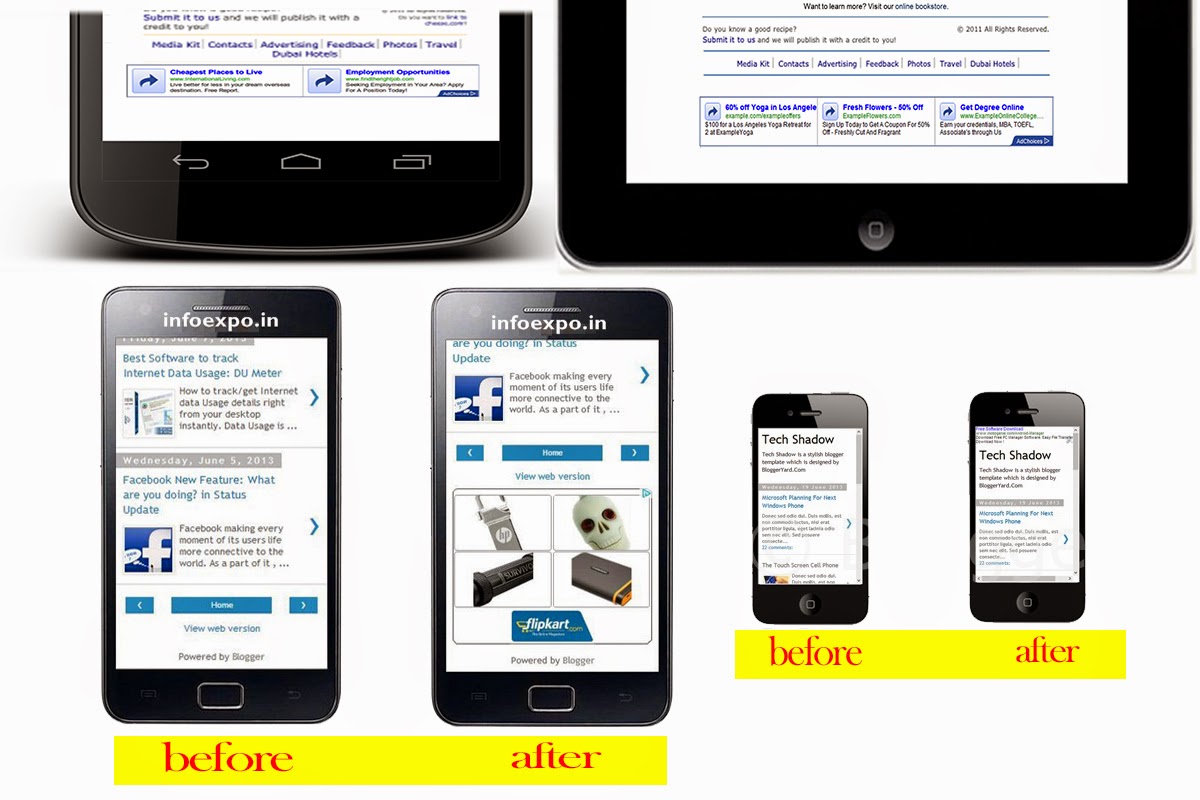
hello bloggers, in this article we will give you a tip can be ignored by most of us.

previously, we explained how to publish posts via mobile and email. but now we will explain

How To Show AdSense Ads in Mobile Version of Blogger Blogs.

Most of bloggers, insert ads code in blogger to show adsense ads in blogs due to getting the default blogger account getting disabled.

as  you now, Mobile generation is being spreading rapidly as people in high paying adsense countries like

USA, Canada and other countries are using Mobile and other small devices like laptop, Tablet, IPad to surf

the internet, In blogger.

so why not optimize our siteweb for these devices ???

This method is very simple by which we can show adsense ads in mobile version of blogger, so we

can increase in adsense earning.

let's begin :

adsense ads can be automatically appeared in mobile device version of blogger blogs by enabling

adsense from earnings adsense page.

let's do it :

1. first go to blogger ------> login -----> dashboard ------> earnings.   as shown below
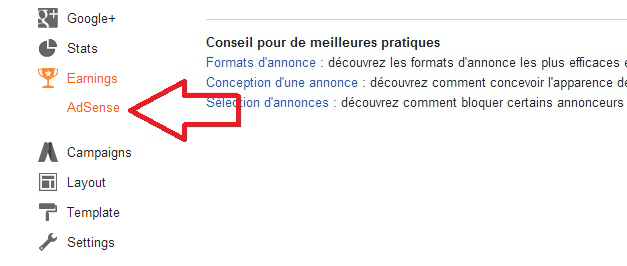
earnings adsense


2. after that, tick mark "yes" on "show ads on blog"
3. in "display" option, choose any place where adsense ads will be showed
4. and finally click save setting
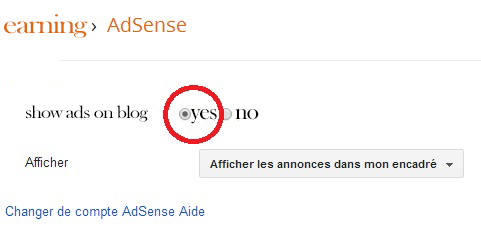
show ads on blog


that's all, it's very simple, now go to your blogs in your Mobile device, and you can see your

adsense ads

enjoy


How To Publish Posts (posting) via Mobile and Email In Blogger

How To Publish Posts (posting) via Mobile and Email In Blogger


Today, we're going to show you the feature of Blogging Via Mobile and Email.
So in this post, I'll show you how to setup and publish posts on your Blogger blog via Mobile and Email.

There are several reasons that Blogger developers had made this feature available in their platform

and some of them, among we find that some people don't have such devices like Computer, Laptop

or other by which they could blogging on blogger and mobile is a common thing, that everyone has almost.

wa can also say that some people are mostly busy in their routine and due to that, they can't spent

time to write blog posts on computer or laptop. With the help of this feature, they can do blogging

on mobile during traveling in vehicle, walking by foot, laying on the bed and there are many other

situations where you can easily blog with mobile.

before going to the tutorial, i would like to tell you that you must have a good cell phone or email

system because you will need decorate and beautify the post, adding a good image, choose for example italic and bold text.

so, i think all people have a good cell phone, well
now, to enable the mobile and email posting in blogger, please follow this steps :

first go to blogger setting and click mobile and email as shown below


posting via Mobile and Email In Blogger


we are going to configure first mobile posting, and email after

1. mobile posting:

in this section bellow click "add mobile device"

posting Mobile and Email In Blogger

a popup will appear in which you will be asked for verifying the mobile device

posting via Mobile and Email In Blogger


you have SMS and MMS service to post via mobile

SMS: send the given code in popup to 256447 in sms from your phone number
MMS: send the given code in popup to go@blogger.com in mms from your phone number

your number phone will be verified, and you have to use it if you want use a mobile posting service

well, now to publish a post via mobile, it's very simple, just write your sms and send it to " 256447" 

or prepare your mms and send to "go@blogger.com".

and it's done, that is all about mobile posting .


2. email posting :

in the field below "secretwords", you have to create any secret code which should be between 4 and 20  characters

posting via Mobile and Email In Blogger

your email will be look like " bloggersens.secretwords@blogger.com"
 after, you choose wich action blogger should do when it get any email

and click "save setting" at top right

posting via Mobile and Email In Blogger
now, to post via email, it's very very simple, just prepare you email and send it to the secret blogger 

email address you created before ( for example "bloggersens.secretwords@blogger.com)

that is all

i hope you like this topic.


how to install/add new blogger templates


Follow this Simple Guide to Install your Favorite Blogger Template:

1. Login to your blogger account, select your blog and click template and you can see button at the right hand as seen below


2. Now just click on backup / restore button 


3. one box will pop up as seen below, first click on ( download full template) For Safety Purpose to download your present template for backing up as seen below


4. Now click ‘choose file’ 


5. and select  your required template XML file as seen below


6. click ‘Upload’ Button as seen below to upload your favorite template


7. Now Check Your Blogger by clicking on button view blog as seen below


see video tutorial


enjoy