Affichage des articles dont le libellé est blogger Widgets. Afficher tous les articles

float social gadget

gadget Module Social Facebook (Facebook Fans) or twitter fans floating on your blogger blogs :
the gadget just displays a small logo on Facebook or twitter right side of your blog, logo remains fixed in one place, the player move up or down the page.
When the mouse moves over the logo, it expands to display the Facebook social module or twitter social module, a sample of your blog fans on Facebook or twitter and the ability to love that page where to go by clicking on his name.
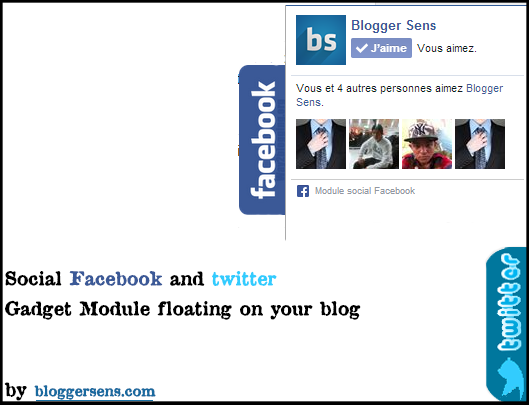
float social gadget


To view this Social Facebook Gadget Module floating on your blog, here are the steps to follow:

1. Log into Blogger and click "Model" for the blog where you will install the module floating Social Facebook and then "Edit".

2. Find the </ head> and paste the following code just before:

<script src = 'https: //ajax.googleapis.com/ajax/libs/jquery/1.6.1/jquery.min.js' type = 'text / javascript' />

Save your model.

4. Paste the following code into your new Gadget HTML / Javascript:

<script type="text/javascript"> //<!-- 
$(document).ready(function() {$(".w2bslikebox").hover(function() {$(this).stop().animate ({right: "0"}, "medium");}, function() {$(this).stop().animate({right: "-250"}, "medium");}, 
500);}); //--> </script> 
<style type="text/css"> 
.w2bslikebox{background: url("https://blogger.googleusercontent.com/img/b/R29vZ2xl/AVvXsEiprygWbCC-hPF2qrZsL2j_VPzwmTZ7R5SZEzyF_Im93VXWXc7EneFEQjvPIUBJB6PZB31c3-d6RXZan_I0Dt6IRpTXuxPFow6yy4udsrGM_jJkU-JksE5uj9Kjo4Texum1ibYi3xg-LvSa/s1600/facebook1.png") no-repeat scroll left center transparent !important;display: block;float: right;height: 270px;padding: 0 5px 0 46px;width: 245px;z-index: 99999;position:fixed;right:-250px;top:20%;} 
.w2bslikebox div{border:none;position:relative;display:block;} 
.w2bslikebox span{bottom: 10px;font: 9px "lucida grande",tahoma,verdana,arial,sans-serif;position: absolute;right: 6px;text-align: right;z-index: 99999;} 
.w2bslikebox span a{color: #FF9D00;text-decoration:none;} 
.w2bslikebox span a:hover{text-decoration:underline;} 
</style><div class="w2bslikebox" style=""><div>
<iframe src="http://www.facebook.com/plugins/likebox.php?href=http://www.facebook.com/yourpagefacebookhere&amp;
width=245&amp;colorscheme=light&amp;show_faces=true&amp; connections=8&amp;stream=false&amp;header=false&amp;height=330" scrolling="no" frameborder="0" scrolling="no" style="border: medium none; overflow: hidden; height: 330px; width: 245px;background:#fff;"></iframe><span><a href="http://www.bloggersens.com/2014/08/float-social-gadget.html">get this widget</a></span><span><a href="http://bloggersens.com">Blogger</a></span></div></div>


Replace the red with the url of the page of your blog fans on Facebook and click "Save" and will see what happens on your blog.


After article showing how to add a Gadget Fans on Facebook floating on his blog Blogger, we'll see how to add a Gadget Twitter Followers floating on blogspot.
As the gadget previously seen, Twitter button will display on the side that you like (right or left)
Here's  the steps to get this Twitter Followers Gadget on blogger blogspot:

1.first Log into Blogger and click "Model" for the blog where you will install the module floating Social Facebook and then "Edit".

2. Find the </ head> and paste the following code just before:

<script src = 'https: //ajax.googleapis.com/ajax/libs/jquery/1.6.1/jquery.min.js' type = 'text / javascript' />

Save your model.

Note that if you have already installed the Gadget Fans on Facebook float, you can skip this step.

3 Go to "Elements of the page", click on "Add a Gadget" on your sidebar and select "HTML / Javascript".

4 Paste the following code into your new Gadget HTML / Javascript:


<script type="text/javascript">
//<!-- 
$(document).ready(function() {$(".twitterboxot").hover(function() {$(this).stop().animate({right: "0"}, "medium");}, function() 
{$(this).stop().animate({right: "-250"}, "medium");}, 500);}); 
//--> </script> 
<style type="text/css">
.twitterboxot{background: url("https://blogger.googleusercontent.com/img/b/R29vZ2xl/AVvXsEhMIAkGGa-CBd_LxA7y7aotJR5H6FQGGABK5AsqqGrXZSIDIjkgWkbl6vWUWqXQRrjLHahpo32fkaoanMR3kO2DRIBHbURmKwJ61LhTUYp_0l1qwzREu9vosmOsyOOzXjCR3NFwzc137XoB/s1600/twitterbox.png")
no-repeat scroll left center transparent !important;
display: block;
float: right;
height: 240px;
padding: 0 5px 0 46px;
width: 245px;
z-index: 99999;
position:fixed;
right:-250px; top:20%;}</style>
<div class="twitterboxot"><div>
<script type="text/javascript"
src="http://script-ot.googlecode.com/svn/twitterbox.js"></script><div 
id="twitterfanbox"></div>
<script type="text/javascript">fanbox_init("twitter-id");</script></div><div style="font-size:10px;">
<a href="http://www.bloggersens.com/2014/08/float-social-gadget.html" target="_blank">Get This Widget</a>
</div></div> 


In the above gadget, change the "right" in red with "left" if you want the Gadget Twitter Followers Rather appears on the left or change the red by 20% to 60% if you want to keep it with the button Facebook right.

Do not forget to change "twitter-id" with your Twitter username.

5 Click "Save" and go see the results on your blog.

Now you too can have the Gadget Twitter Followers floating on your blog hosted by Blogger.
 it's great no ?

enjoy

mocharakat style social subscription widget for blogger

mocharakat style social subscription widget for blogger


mocharakat Style Social Subscription Widget is very good and simple widget for blogger template. 

Most of popular wordpress blogs used this widget. we are providing you mocharakat Style Social 

Subscription Widget For Blogger. we will give you full customize code of mocharakat Style Social 

Subscription Widget for blogger. 
This widget includes facebook button and box, Twitter button with followers and Google plus 

button for your blog visitors to share your post on social media websites, rss feed and subscription 

email. You can also increase your visitors with the help of social subscription widget on your blog 

from social sites.

mocharakat widget

how to install mocharakat Style Social Subscription Widget on Blogger:

Please follow below steps to add mocharakat Style Social Subscription Widget for Blogger

first Login into Blogger Account and Go to Blogger dashboard

Go to Layout and click on Add a Gadget

When you click on Add a Gadget link a popup window will open with all gadget lists. 
Select HTML/JavaScript Widget

Copy & Paste the following code into HTML/JavaScript box:

<style>
    /* Social Widget */
    #BS-mocharakat-bar {
        border: 0;
        margin-bottom: 10px;
        margin: 0 auto;
            width:300px;
    }
    .fb-likebox {
        background: #fff;
        padding: 10px 13px 0 10px;
         border-top: 1px solid #D8E6EB; 
       border-right: 1px solid #D8E6EB;
       border-left: 1px solid #D8E6EB;
       border-bottom: 1px solid #D8E6EB;
        margin-top:15px;
            height:45px;
    }
    .googleplus {
        background: #F886F8;
        border-top: 1px solid #F525DC;
        border-bottom: 1px solid #F525DC;
        border-right: 1px solid #F525DC;
        border-left: 1px solid #F525DC;
        border-image: initial;
        font-size: .90em;
        font-family: "Arial","Helvetica",sans-serif;
        color: #000;
        padding: 9px 11px;
        line-height: 1px;}
    .googleplus span {
        color: #000;
        font-size: 8px;
        position: absolute;
        display:inline-block;
        margin: 9px 70px;}
    .g-plusone {    float: left;}
.gplus {
        background: #fff;
        padding: 0px;
        border: 0px solid #C7DBE2;
        margin-bottom:-13px;}
    .twitter {
        background: #EEF9FD;
        padding: 10px;
        border: 1px solid #C7DBE2;
        border-top: 0;}
    #mocharakat{
        background: #EBEBEB;
        border: 1px solid #CCC;
        border-top: 1px solid white;
        padding: 2px 8px 2px 3px;
        text-align: right;
        border-image: initial;}
    #mocharakat.author-credit {}
    #mocharakat.author-credit a {
        font-size: 10px;
        font-weight: bold;
        text-shadow: 1px 1px white;
        color: #1E598E;
        text-decoration:none;}
    #email-news-subscribe .email-box{
        padding: 8px 10px;
        font-family: "Arial","Helvetica",sans-serif;
        border-top: 0;
        border-right: 1px solid #C7DBE2;
        border-left: 1px solid #C7DBE2;
        border-image: initial;
       height:53px;}
    #email-news-subscribe .email-box input.email{
        background:#FFFFFF;
        border: 1px solid #dedede;
        color: #999;
        padding: 7px 10px 8px 10px;
        -moz-border-radius: 3px;
        -webkit-border-radius: 3px;
        -o-border-radius: 3px;
        -ms-border-radius: 3px;
        -khtml-border-radius: 3px;
        border-radius: 3px;
        border-image: initial;
        font-family: "Arial","Helvetica",sans-serif;} 
    #email-news-subscribe .email-box input.email:focus{color:#333} 
    #email-news-subscribe .email-box input.subscribe{
        background: -moz-linear-gradient(center top,#FFCA00 0,#FF9B00 100%);
        background: -webkit-gradient(linear,left top,left bottom,color-stop(0,#FFCA00),color-stop

(1,#FF9B00));
        background: -moz-linear-gradient(center top,#FFCA00 0,#FF9B00 100%);
        -pie-background: linear-gradient(270deg,#ffca00,#ff9b00);
        font-family: "Arial","Helvetica",sans-serif;
        border-radius:3px;
        -moz-border-radius:3px;
        -webkit-border-radius:3px;
        border:1px solid #cc7c00;
        color:white;
        text-shadow:#d08d00 1px 1px 0;
        padding:7px 14px;
        margin-left:3px;
        font-weight:bold;
        font-size:12px;
        cursor:pointer;
        border-image: initial;}
    #email-news-subscribe .email-box input.subscribe:hover{
        background: #ff9b00;
        background-image:-moz-linear-gradient(top,#ffda4d,#ff9b00);
        background-image:-webkit-gradient(linear,left top,left bottom,from(#ffda4d),to(#ff9b00));
        filter:progid:DXImageTransform.Microsoft.Gradient

(startColorStr=#ffffff,endColorStr=#ebebeb);
        outline:0;-moz-box-shadow:0 0 3px #999;
        -webkit-box-shadow:0 0 3px #999;
        box-shadow:0 0 3px #999
        background:-webkit-gradient(linear,left top,left bottom,color-stop(0,#ffda4d),color-stop

(1,#ff9b00));
        background:-moz-linear-gradient(center top,#ffda4d 0,#ff9b00 100%);
        -pie-background:linear-gradient(270deg,#ffda4d,#ff9b00);
        border-radius:3px;
        -moz-border-radius:3px;
        -webkit-border-radius:3px;
        border:1px solid #cc7c00;
        color:#FFFFFF;
        text-shadow:#d08d00 1px 1px 0} 
    #other-social-bar {
        background-color: #FAC7B7;
        box-shadow: 0 1px 1px #F5BA93 inset;
        padding: 0px;
        font-family: "Arial","Helvetica",sans-serif;
        font-weight:bold;
        overflow: hidden;
        border: 1px solid #F3A07A;
           height:37px;
    }
    #other-social-bar ul {list-style: none outside none; padding-left: 4px;}
    #other-social-bar .other-follow {
        float: left;
        color:#1E598E;
        overflow: hidden;
        height:20px;
        padding:5px;
        width: 270px;}
    #other-social-bar .other-follow ul {
        list-style: none outside none;
        padding-left: 4px;}
    #other-social-bar .other-follow ul li {
        font-size: 12px;
        font-weight: bold;
        display:inline;
        border:0;
        text-shadow: 1px 1px white;} 
    #other-social-bar .other-follow ul li a {
        font-size: 12px;
        color:#1E598E;
        font-weight: bold;
        display:inline;
        text-shadow: 1px 1px white;}
    #other-social-bar .other-follow li {
        font-size: 12px;
        font-weight: bold;
        display:inline;
        border:0;
        text-shadow: 1px 1px white;}
    #other-social-bar .other-follow li a {
        font-size: 12px;
        color:#1E598E;
        font-weight: bold;
        display:inline;
        text-shadow: 1px 1px white;}
    #other-social-bar .other-follow li.my-rss {
        background: url('http://3.bp.blogspot.com/-

sR72SM_Wets/TwHZG9y4hXI/AAAAAAAAFv8/0bP2R3Qkl8c/s400/rss-16x16.png') no-repeat 

transparent;
        line-height: 1;
        padding: 0px 3px 1px 20px;
        width: 60px;
        margin-bottom:0px;
            margin-left:5px;}
    #other-social-bar .other-follow li.my-rss a, #other-social-bar .other-follow li.my-twitter a, #other-

social-bar .other-follow li.my-gplus a{
    text-decoration:none;
    }
    #other-social-bar .other-follow li.my-rss a:hover, #other-social-bar .other-follow li.my-twitter 

a:hover, #other-social-bar .other-follow li.my-gplus a:hover{
    text-decoration:underline;
    }
    #other-social-bar .other-follow li.my-twitter {
        background: url('http://2.bp.blogspot.com/-

KsALKRN7Zzo/T0vKkSG3AfI/AAAAAAAAF_k/l-VHD5xxzps/s400/twitter%2527.png') no-repeat 

transparent;
        line-height: 1;
        padding: 0px 3px 1px 20px;
        width: 60px;
        margin-bottom:0px;}
    #other-social-bar .other-follow li.my-gplus {
        background: url(http://4.bp.blogspot.com/-

cC729VpBxrk/TwHZE71ZgoI/AAAAAAAAFvk/_UMyIgA8vj8/s400/gplus-16x16.png) no-repeat 

transparent;
        line-height: 1;
        width: 60px;
        padding: 0px 3px 1px 20px;
        margin-bottom:0px;}
    </style>
    <!--[if IE]>
    <style>
    #email-news-subscribe .email-box input.subscribe{
        background: #FFCA00;
        }
    </style>
    <![endif]-->
<!--begin of social widget--> <div style="margin-bottom:10px;"> <div id="BS-mocharakat-bar" > <!-- 

Begin Widget -->
<div class="gplus"> <link href="https://plus.google.com/65644865131324" rel="publisher" />
<script type="text/javascript"> window.___gcfg = {lang: 'en'}; undefinedfunctionundefined) {var po = 

document.createElementundefined"script"); po.type = "text/javascript"; po.async = true;po.src = 

"https://apis.google.com/js/plusone.js"; var s = document.getElementsByTagNameundefined"script")

[0]; s.parentNode.insertBeforeundefinedpo, s); })undefined);</script>
<!-- Place this tag where you want the badge to render --> <g:plus 

href="https://plus.google.com/bloggersens" width="300" height="131" margin="0px" 

theme="light"></g:plus> </div>
<div class="fb-likebox"> <!-- Facebook --> <iframe src="//www.facebook.com/plugins/like.php?

href=http://facebook.com/bloggersens&amp;send=false&amp;layout=standard&amp; 

width=200px&amp;show_faces=false&amp;action=like&amp;colorscheme=light&amp; 

font&amp;height=100px&amp;" scrolling="no" frameborder="0" style="border:none; 

overflow:hidden; "></iframe> </div>
<div class="googleplus"> <!-- Google --> <span>Recommend us on Google!</span><div class="g-

plusone" data-size="medium"></div> <script type="text/javascript" 

src="https://apis.google.com/js/plusone.js"></script> </div>
<div class="twitter"> <!-- Twitter --> <iframe title="" style="width: 300px; height: 20px;" class="twitter-

follow-button" 

src="http://platform.twitter.com/widgets/follow_button.html#_=1319978796351&amp; 

align=&amp;button=blue&amp;id=twitter_tweet_button_0&amp; 

lang=en&amp;link_color=&amp;screen_name=bloggersens&amp;show_count=&amp; 

show_screen_name=&amp;text_color=" frameborder="0" scrolling="no"></iframe> </div>
<div id="email-news-subscribe"> <!-- Email Subscribe --> <div class="email-box"> <form 

action="http://feedburner.google.com/fb/a/mailverify" method="post" target="popupwindow" 

onsubmit="window.openundefined'http://feedburner.google.com/fb/a/mailverify?uri=bloggersens', 

'popupwindow', 'scrollbars=yes,width=550,height=520');return true"> <input class="email" type="text" 

style="width: 150px; font-size: 12px;" id="email" name="email" value="Enter Your Email here.." 

onfocus="ifundefinedthis.value==this.defaultValue)this.value=&#39;&#39;;" 

onblur="ifundefinedthis.value==&#39;&#39;)this.value=this.defaultValue;" /> <input type="hidden" 

value="bloggersens" name="uri" /> <input type="hidden" name="loc" value="en_US" /> <input 

class="subscribe" name="commit" type="submit" value="Subscribe" /> </form> </div> </div> <div 

id="other-social-bar"> <!-- Other Social Bar --> <ul class="other-follow"> <li class="my-rss"> <a 

rel="nofollow" title="RSS" href="http://feeds.feedburner.com/bloggersens" target="_blank">RSS 

Feed</a> </li> <li class="my-twitter"> <a rel="nofollow" title="twitter" rel="author" 

href="http://twitter.com/bloggersens"  target="_blank">Twitter</a> </li> <li class="my-gplus"> <a 

rel="nofollow" title="Google Plus" rel="author" href="https://plus.google.com/4366548965121" 

target="_blank">Google Plus</a> </li> </ul> </div> <div id="bloggersens" style="background: 

#EBEBEB;border: 1px solid #CCC;border-top: 1px solid white;padding: 1px 8px 1px 3px;text-align: 

right;border-image: initial;font-size:10px;font-family: "arial","helvetica",sans-serif;"> <span 

class="author-credit" style="font-family: Arial, Helvetica, sans-serif;"><a 

href="http://www.bloggersens.com" target="_blank" >Blogger Widgets »</a><a 

href="http://www.bloggersens.com" rel="dofollow" target="_blank" title="blogger templates"><img 

src="https://bitly.com/bloggersens" alt="blogger templates" border="0" style="position: fixed; 

bottom: 10%; right: 0%;" /></a></span></div></div> <!-- End Widget --> </div>
<!--end of social widget-->

Change all red color with your id.

now Click on Save Button.

it's done


Add social networks widget with responsive numbers

add social networks widget with responsive numbers

hello,  we wanted to give you a new addition.

 is to add the numbers to socials networks in your template blogger that appear as the pictures above

first go to your template dashboard and edit html


Look for this code : </head>

and put this line before (in sole line) :

<link rel='stylesheet' id='tie-style-css' 
href='https://dl.dropboxusercontent.com/s/9tweqtainus0d7v/style.css'
 type='text/css' media='all' />

save template

now we go to template  layout and add a new html/javascript

and paste the  code below:

<div class="arqam-widget-counter arq-outer-frame arq-colored arq-col3">
        <ul>    
                <li class="arq-facebook">
                <a href="#" target="_blank">
                    <i class="arqicon-facebook"></i>
                    <span>26,425</span>
                    <small>Fans</small>
                </a>
            </li>
                    <li class="arq-twitter">
                <a href="#" target="_blank">
                    <i class="arqicon-twitter"></i>
                    <span>3,890</span>
                    <small>Followers</small>
                </a>
            </li>
                    <li class="arq-google">
                <a href="#" target="_blank">
                    <i class="arqicon-gplus"></i>
                    <span>13,323</span>
                    <small>Followers</small>
                </a>
            </li>
                    <li class="arq-youtube">
                <a href="#" target="_blank">
                    <i class="arqicon-youtube"></i>
                    <span>4,586</span>
                    <small>Subscribers</small>
                </a>
            </li>
                    <li class="arq-linkedin">
                <a href="#" target="_blank">
                    <i class="arqicon-linkedin"></i>
                    <span>45,113</span>
                    <small>Members</small>
                </a>
            </li>
                    <li class="arq-dribbble">
                <a href="#" target="_blank">
                    <i class="arqicon-dribbble"></i>
                    <span>10,648</span>
                    <small>Followers</small>
                </a>
            </li>
                    <li class="arq-instagram">
                <a href="#"_blank">
                    <i class="arqicon-instagram-filled"></i>
                    <span>1,300</span>
                    <small>Followers</small>
                </a>
            </li>
                    <li class="arq-vimeo">
                <a href="#" target="_blank">
                    <i class="arqicon-vimeo"></i> 
                    <span>543</span>
                    <small>Subscribers</small>
                </a>
            </li>
                    <li class="arq-soundcloud">
                <a href="#" target="_blank">
                    <i class="arqicon-soundcloud"></i> 
                    <span>10,103</span>
                    <small>Followers</small>
                </a>
            </li>
                    <li class="arq-envato">
                <a href="#" target="_blank">
                    <i class="arqicon-envato"></i>
                    <span>116</span>
                    <small>Followers</small>
                </a>
            </li>
                    <li class="arq-behance">
                <a href="#" target="_blank">
                    <i class="arqicon-behance"></i> 
                    <span>15,465</span>
                    <small>Followers</small>
                </a>
            </li>
                    <li class="arq-forrst">
                <a href="#" target="_blank">
                    <i class="arqicon-forrst"></i> 
                    <span>112</span>
                    <small>Followers</small>
                </a>
            </li>
                    <li class="arq-delicious">
                <a href="#" target="_blank">
                    <i class="arqicon-delicious"></i>
                    <span>2,236</span>
                    <small>Followers</small>
                </a>
            </li>
                    <li class="arq-github">
                <a href="#" target="_blank">
                    <i class="arqicon-github-circled"></i> 
                    <span>210</span>
                    <small>Followers</small>
                </a>
            </li>
                    <li class="arq-foursquare">
                <a href="#" target="_blank">
                    <i class="arqicon-foursquare"></i>
                    <span>95</span>
                    <small>Friends</small>
                </a>
            </li>
                    <li class="arq-vk">
                <a href="#" target="_blank">
                    <i class="arqicon-vk"></i>
                    <span>16k</span>
                    <small>Members</small>
                </a>
            </li>
                    
                    <li class="arq-mailchimp">
                <a href="#" target="_blank">
                    <i class="arqicon-mail-alt"></i>
                    <span>115</span>
                    <small>Subscribers</small>
                </a>
            </li>
                                    
            </ul>
        </div>


change   #    with your url

now save and it's donne
i hope you like our blogger add on

Flat Subscription Widget For blogger

Flat Subscription Widget For blogger

The Flat subscription widget for blogger is for the people who wants more genuine readers and good fan following for them. Yes the Subscription widget is an RSS type , which the people will enter their email and subscribe to the updates of the blog. Whenever the user post new content they will get the news on their email immediately.


1) Go to the Blogger and sign in with your account.

2) After going to your Dashboard, you can see this in your blog.

3)  Left to the view blog an arrow is there, after clicking this arrow we get the options like below.

4) Now select the Layout Option as shown in above.

5) Then Click the Add gadget and Select the HTML/Javascript.

6) Now paste this code in that box.
<style>
.hl-email{
background:#F2F2F2;
width:300px;
height:187px;
float:left;
font-size:1.4em;
font-weight:bold;
margin:0 0 10px 0;
color:#686B6C;
        border:1px solid #0099cc;
}
.hl-emailsubmit{
background:#0099cc;
cursor:pointer;
color:#fff;
border:none;
padding:3px;
font:15px open sans;
padding:10px 0 10px 0;
width:300px;
}
.hl-emailsubmit:hover{
background:#3bb1d8;
}
.textarea{
padding:8px;
margin:10px 2px 15px 70px;
background:#fff;
border:1px solid #0099cc;
resize:none;
width:210px;
color:#666;}
 
    p {
        Padding:10px 0 0px 0;
        text-align:center;
        font:16px open sans;
        font-weight:300;
    }
</style>
<br />
<div class="hl-email">
Subscribe via Email To our NewsLetter Don't Miss anythings<br />
<form action="http://feedburner.google.com/fb/a/mailverify" id="feedform" method="post" onsubmit="window.open('http://feedburner.google.com/fb/a/mailverify?uri=bloggersens', 'popupwindow', 'scrollbars=yes,width=550,height=520');return true" target="popupwindow">
<div style="background: url(https://blogger.googleusercontent.com/img/b/R29vZ2xl/AVvXsEha_g6EMh3g6uooEZr1Hj7KKhTjAh-RJYkfS6qopQgNBkVXHqQG-KVUtuNVi7XJ_5yb3qHw8Z79RanGqEERbM3PtDobP97v4bhs_3cr0pjSIrio_bbEYp4QrkdE7ZGGfHNj_J9kUhD0_zTR/h120/mail.png) no-repeat 8px 0px;">
<input class="textarea" gtbfieldid="3" name="email" onblur="if (this.value == &quot;&quot;) {this.value = &quot;Email address&quot;;}" onfocus="if (this.value == &quot;Email address;) {this.value = &quot;&quot;;}" type="text" value="Email address" />
        </div>
<input name="uri" type="hidden" value="BloggerSens" /><input name="loc" type="hidden" value="en_US" />
<br />
<div>
<input class="hl-emailsubmit" type="submit" value="Submit" />
</div>
</form>
</div>
Replace Bloggersens with your feedburner ID.

Now please save your HTML/Javascript, its done.